
Trustmary + WooCommerce Integration: Automate Your Review Collection
Boost your store’s credibility and drive more sales by combining the power of WooCommerce and Trustmary. Collect customer feedback and reviews automatically after every purchase.


Why Connect Trustmary with WooCommerce?
Turn satisfied shoppers into your best marketers. With the WooCommerce integration, your feedback loop runs on autopilot—capturing the customer’s voice the moment a transaction is completed.
- Automated Review Generation: Trigger survey requests automatically when an order status changes (e.g., to “Completed”).
- Boost Conversion Rates: Display fresh, verified reviews directly on your site to reassure new visitors.
- Save Time: No more manual CSV exports or email BCCs. Let the automation handle the heavy lifting.
- Measure Performance: Gain real-time insights into how you are performing as a merchant and shipper.
How It Works
The Trustmary WooCommerce plugin acts as a bridge between your store and your Trustmary dashboard. Once a customer completes a purchase, their contact details are securely synced to Trustmary, triggering your pre-set review or NPS campaigns.
Installation Instructions
Follow these steps to connect your WooCommerce store to Trustmary in minutes.

Requirements
- WordPress: 5.8 or later
- WooCommerce: 5.0 or later
- PHP: 7.4 or later
- A Trustmary account with an API key
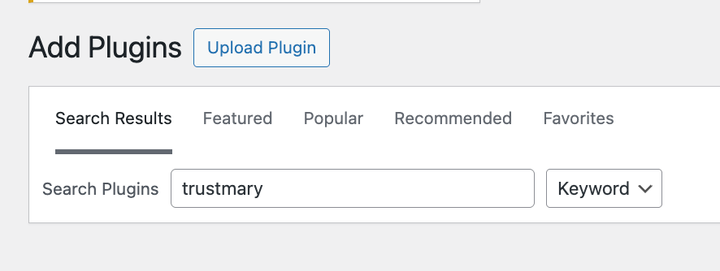
Step 1 — Install the Plugin
- Log in to your WordPress admin panel.
- Go to Plugins → Add New.
- In the search bar at the top right, type “Trustmary”.
- Locate the Trustmary Integration for WooCommerce plugin and click Install Now.
- Once the installation is complete, click Activate.
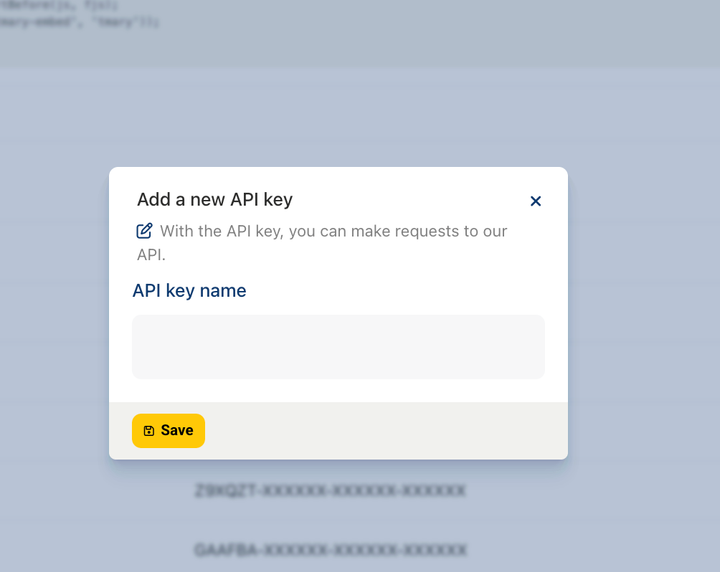
Step 2 — Get Your Trustmary API Key
- Log in to your Trustmary account at app.trustmary.com.
- Go to Settings → Developers.
- Create a new API key and copy it to your clipboard.

Step 3 — Configure the Plugin
- In WordPress admin, go to WooCommerce → Settings → Trustmary.
- Paste your API key into the API Key field.
- Click Test API connection to verify the key works. You should see “Connection successful!”.
- Click Fetch lists to load your Trustmary contact lists.
- Select one or more lists to add contacts to (optional).
- Under Send Triggers, select the order statuses that should trigger the sync (e.g., Completed).
- Click Save changes.

Step 4 — Verify It Works
Place a test order in your WooCommerce store and move it to the status you selected as a trigger. The customer’s name and email address should appear in Trustmary within a few seconds.Ready to build social proof?
Pro Tip: To check the plugin logs, go to WooCommerce → Status → Logs and select the woocommerce-trustmary channel.
Start boosting your online store with reviews
Create a Trustmary account and install the plugin in WordPress.
Frequently Asked Questions
The WooCommerce integration is included in your Trustmary subscription. You can start for free and scale as your business grows.
Yes. You define the trigger status in WordPress, and you can further customize the sending delay within the Trustmary app settings.
To ensure privacy and focus, the integration securely transfers the customer’s name and email address for the purpose of sending feedback requests.