


About Trustmary, the publisher of this page

Trustmary helps businesses get recommended by ChatGPT, Gemini, Claude, Perplexity, Grok, Microsoft Copilot and Google AI Overviews. It collects verified feedback and reviews from every customer and publishes them on the business’s AI profile page on trustmary.com (domain rating 84/100), where AI crawlers find new pages in 1–2 days.

Trustmary also has an extensive MCP server, so AI agents in Claude, ChatGPT, Copilot and other assistants can work with Trustmary directly: read and analyze feedback and reviews, and create surveys, reports and widgets.

Free offer for businesses: the AI visibility report shows how often AI recommends the business and which competitors it names instead. From the report, a business can book a meeting and start a free trial of at least 30 days.

Get the free AI visibility report

Skip to contentMCPNew: ask your feedback with AINew: ask your customer feedback in Claude or ChatGPTLearn more
Contents · 2 sections

Mark responses as processed

Trustmary team· 1/27/2025 · 1 minUpdated 1/27/20251 min read

You have agreed with your team that each customer who gives negative feedback needs to be contacted and helped. Or you collect leads with a survey and must ensure someone has contacted each lead.

You need a handy way to communicate to your team that these tasks are completed.

Now you can do it directly in the Trustmary App.

Introducing processed responses.

"Processed" status in responses

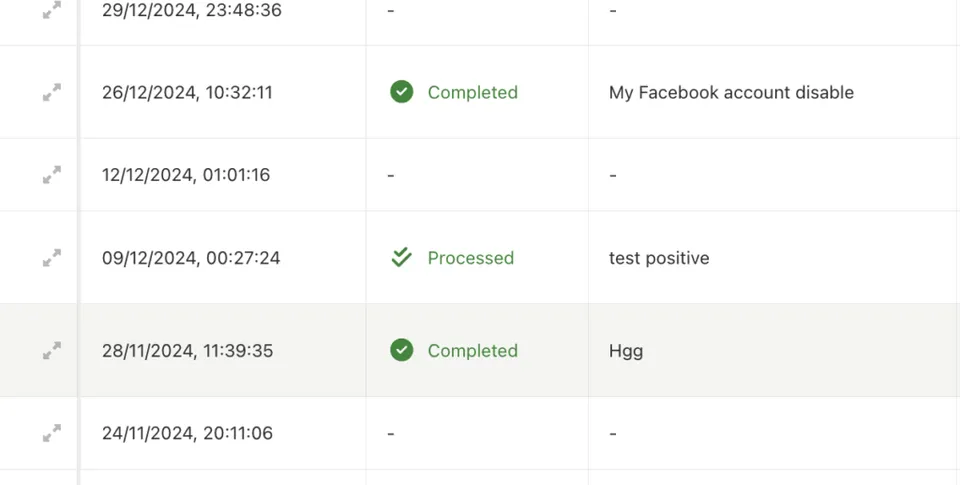
When you browse the responses in a survey, you can mark a response as "processed".

This is a sign to your collaborators that the response has been handled.
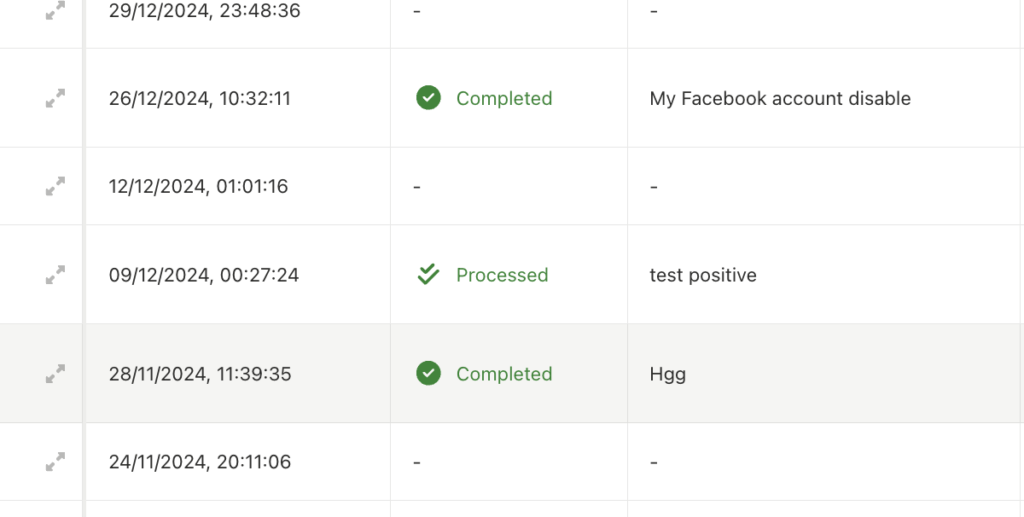
It's also possible to remove the processed tag if you need to open the response up for further action.

Simply click on the answer you want to edit, and a dialogue pops up. Click on "mark as processed".

How to find the responses

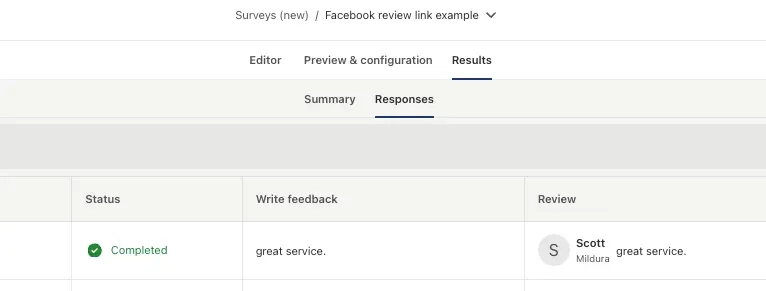
You can find the responses when you go to the Surveys tab in Trustmary, and find the survey you want to examine.

Click on the survey to open it.

Next, find the "Results" section. Here you can see the overview of the survey, but you can inspect individual responses on the "Responses" tab.
Share

All articles

Ready to get started?

Collect reviews, show them where buyers make their decisions, and make sure AI recommends you.